Table of Contents
- Gmail (Web & Mobile)
- Yahoo Mail (Web & Mobile)
- Outlook / Hotmail / Outlook.com
- AOL Mail
- Apple Mail (macOS & iOS)
- ProtonMail
- Comcast/Xfinity Mail
Gmail (Web & Mobile)
Best Method: Create a filter + add to contacts.On Desktop (Gmail Web)
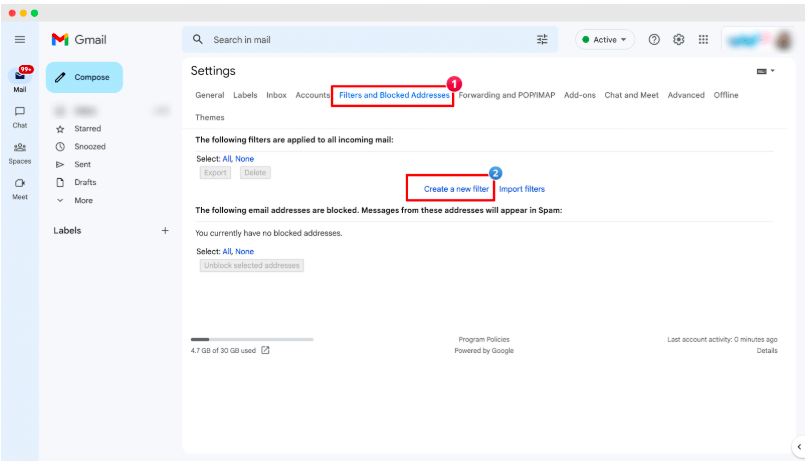
- Log in to Gmail and click the Settings gear icon → See all settings.
- Go to Filters and Blocked Addresses → click Create a new filter.
- Enter newsletter@mail.healthyinsight.com in the From field → click Create filter.
- Check Never send it to Spam and optionally Always mark it as important.
- Click Create filter to save.
- (Optional) Go to contacts.google.com → Create contact → enter newsletter@mail.healthyinsight.com → Save.
On Mobile (Gmail App)
- Open the Gmail app → search for newsletter@mail.healthyinsight.com.
- Tap on an email → tap the three-dot menu → Add to Contacts.
- If found in Spam, open it → tap Not spam or Move to Inbox.
- For complete control, create filters via Gmail Web as above.
 Yahoo Mail (Web & Mobile)
On Desktop (Yahoo Web)
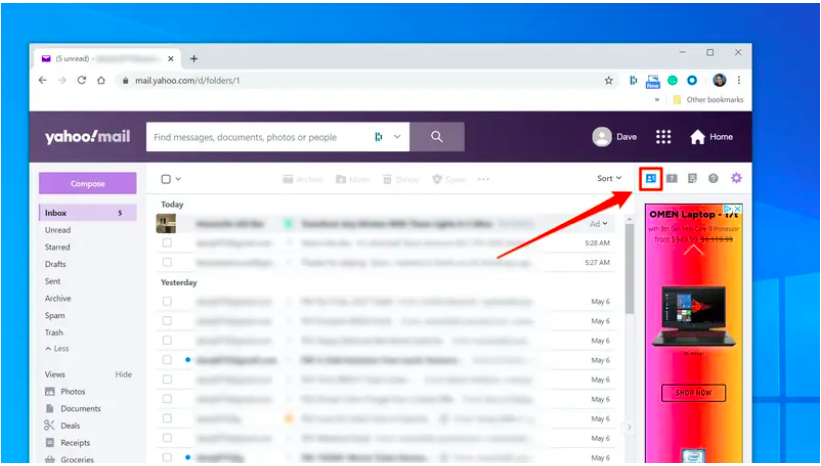
- Log in → click Contacts icon → Add a new contact.
- Enter name + newsletter@mail.healthyinsight.com → Save.
- To create a filter: go to Settings → More Settings → Filters.
- Click Add new filters → set From contains newsletter@mail.healthyinsight.com → move to Inbox → Save.
On Mobile (Yahoo App)
- Open Yahoo app → tap menu → Spam folder.
- Tap an email from us → tap Not Spam or Move to Inbox.
- (If available) Tap sender name → Add to Contacts.
 Outlook / Hotmail / Outlook.com
Best Method: Add to Safe Senders + move to Focused Inbox.
On Desktop (Web)
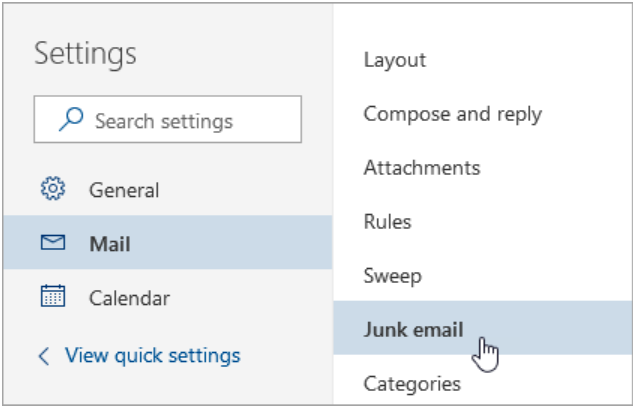
- Sign in → Settings gear → View all Outlook settings.
- Go to Mail → Junk email.
- Under Safe senders and domains, click Add → enter newsletter@mail.healthyinsight.com → Save.
On Desktop App (Outlook for Windows/Mac)
- Right-click our email → Junk → Never Block Sender.
- Or go to Home → Junk → Junk Email Options.
- In the Safe Senders tab, click Add → enter newsletter@mail.healthyinsight.com → OK.
On Mobile (Outlook App)
- Open the email → tap … (three dots) → Move to Focused Inbox.
- Select Move this and all future messages.
AOL Mail
Best Method: Add to Contacts (Address Book).On Web & Mobile
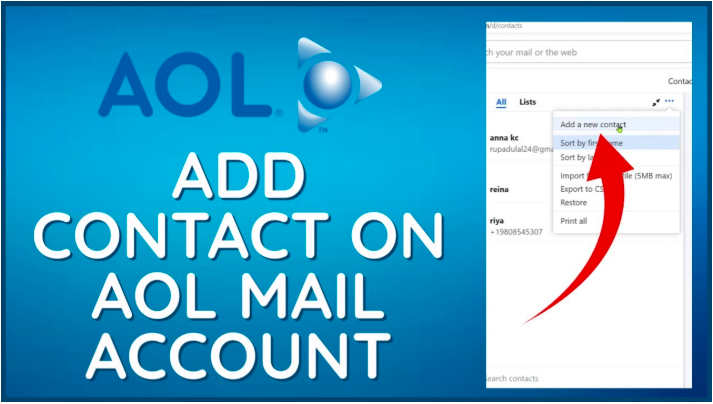
- Log in → click Contacts → New Contact.
- Enter newsletter@mail.healthyinsight.com → add a name → Save.
- If the email was in Spam, open it → click Not Spam.
 Apple Mail (macOS & iOS)
Best Method: Add to Contacts + mark Not Junk + create Rule on macOS.
On macOS
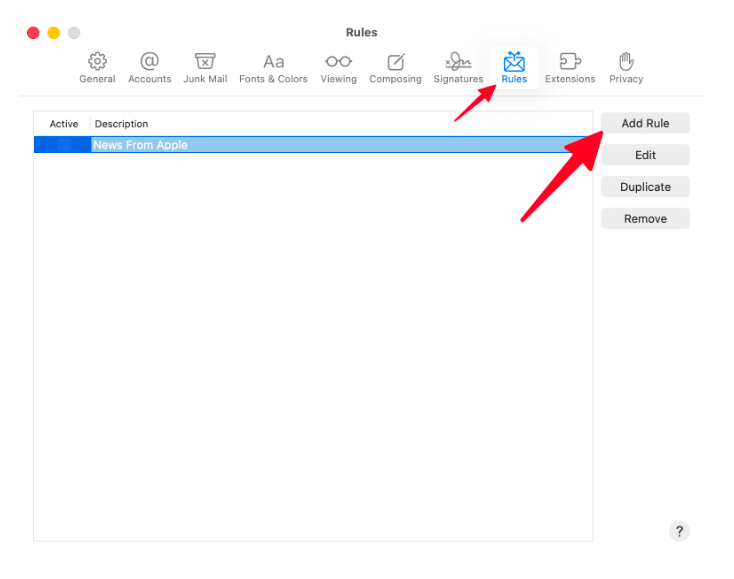
- Open Mail app → Mail > Preferences > Rules.
- Add new rule → if From Ends with newsletter@mail.healthyinsight.com, move to Inbox.
- Also right-click an email → Add to Contacts or Add to VIPs.
- Mark messages as Not Junk if they land in the Junk folder.
On iOS
- Open Mail app → locate message in Junk → tap Move to Inbox.
- Tap sender name → Create New Contact → save.
- Confirm junk filter settings under iOS Settings > Mail > Junk Mail.
ProtonMail
Best Method: Add to Allow List under Filters.On Web
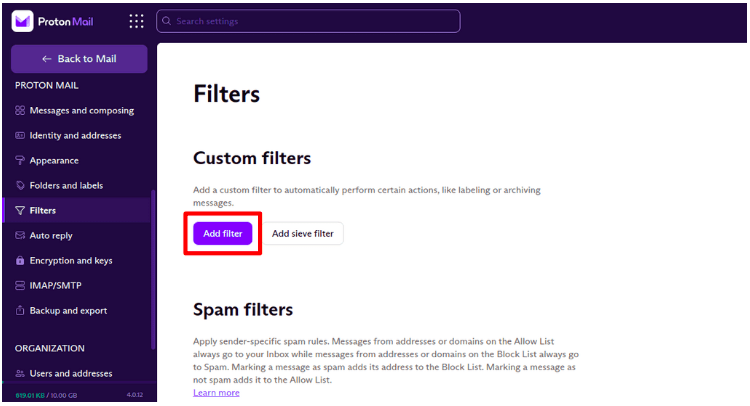
- Go to Settings > Filters > Spam, block, and allow lists.
- Click Add address or domain → select Allow.
- Enter newsletter@mail.healthyinsight.com → click Add.
On Mobile
- Open app → go to Settings > Filters.
- Add sender to Allow List manually.
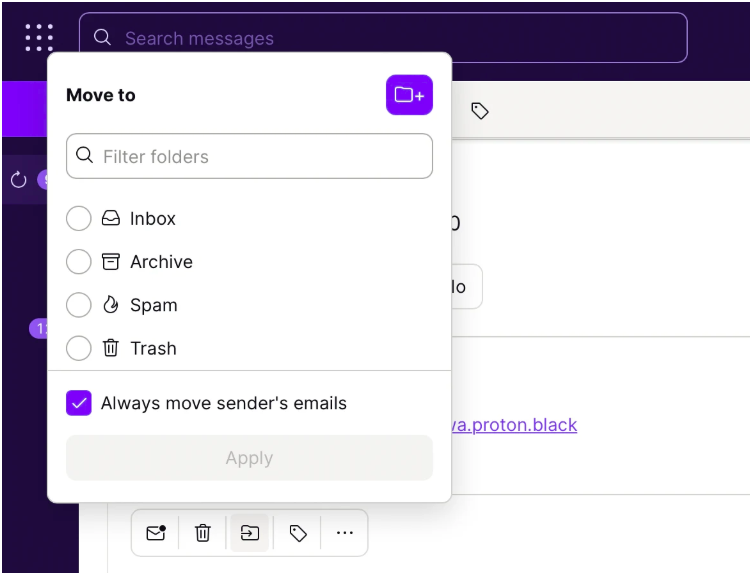
- Or move email from Spam to Inbox → ProtonMail auto-learns this.
Comcast/Xfinity Mail
Best Method: Add to Contacts + create Filter.On Web
- Sign in → open Address Book → Create Contact → add newsletter@mail.healthyinsight.com.
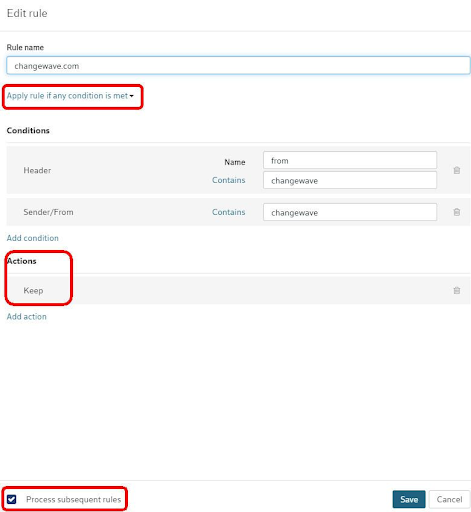
- Go to Settings > Filter Rules → click Add new rule.
- Set condition: From is exactly newsletter@mail.healthyinsight.com.
- Set action: Move to Inbox → Save.
On Mobile
- Open app → access Contacts or device contacts → add sender.
- Check Spam → move any email from us to Inbox → mark Not Spam.
Final Tips (Applies to All Providers)
- Check Spam/Junk folders occasionally.
- Drag our email to your Primary/Inbox tab (especially in Gmail).
- Whitelist our domain if supported.
- Use the web version of your email for full access to settings.
- Replace newsletter@mail.healthyinsight.com with your actual sender email before distributing this doc.
 Need help? If you experience ongoing issues, contact your email provider or reach out to us directly.